Note: You must have your HubSpot meeting scheduler set up before being able to use this function in HubSpot. Refer to the tutorial Set Your Personal HubSpot Meeting Scheduler if needed.
Note: if you'd prefer to watch a brief HubSpot tutorial on this topic, click here.
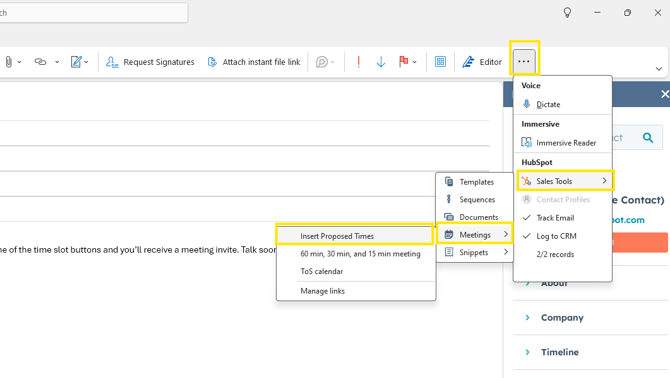
- Click the HubSpot add-in button from within a started email window in Outlook. Go to Meetings > Insert Proposed Times.
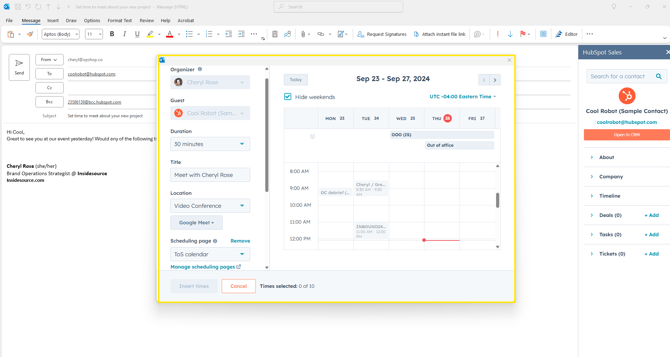
- A meeting scheduler window will pop-up to set the meeting details. See the left-hand side of the pop-up to set duration, title that will show on the calendar invite, location, meeting reminder settings, and a description.
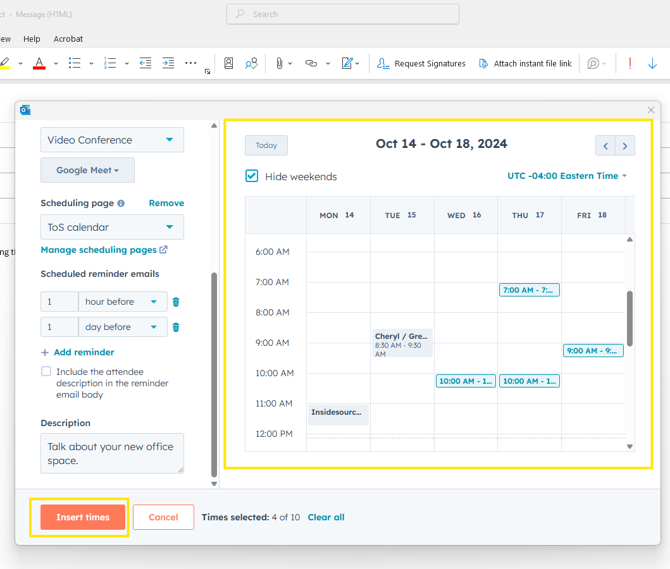
- Select times that you'd like to propose from your calendar. On the right side of the pop-up, your calendar is shown. Click through the days/weeks and select time slots that you'd like to offer to the client. When done, click on Insert times.
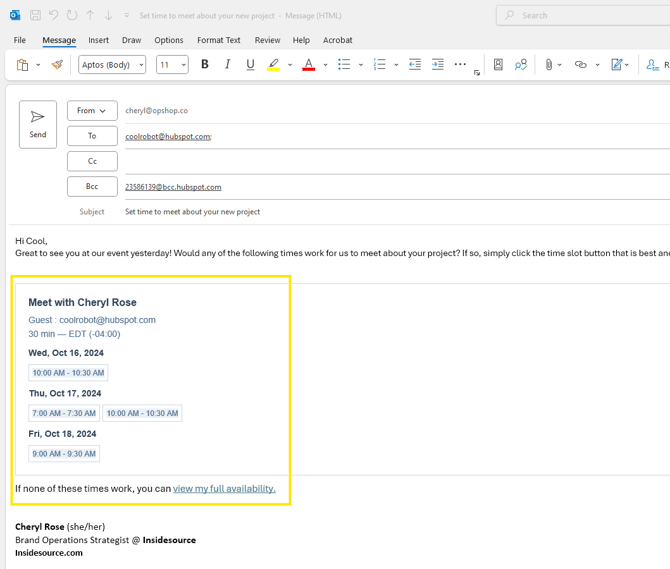
- Your proposed times will be inserted in the existing email. All the client has to do is click one of the time slot buttons and a calendar invite will be sent to both of you. There is also a handy link automatically included so they can proactively book a different day/time if none of the proposed times work.