
SET PROFILE IMAGE
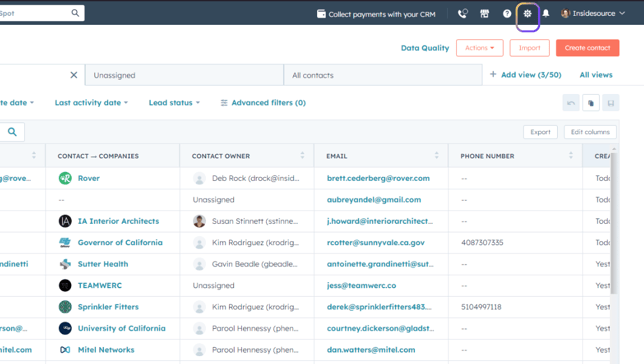
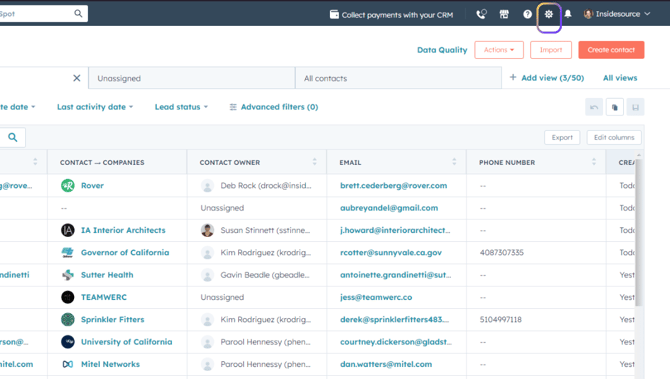
- From any screen, click on Settings (gear icon in upper right).
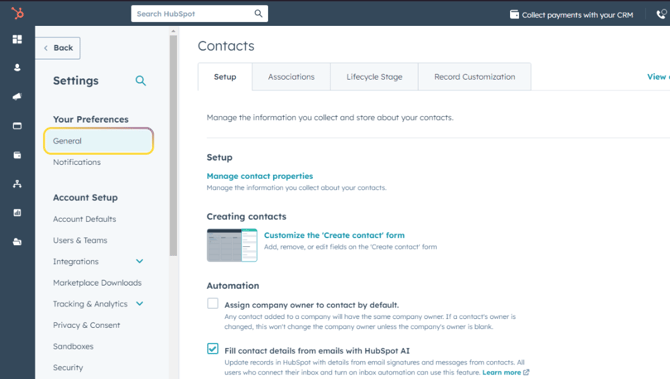
- Click on General in the left sidebar.
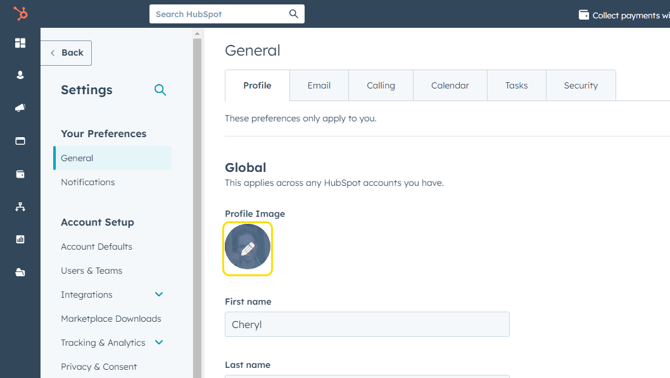
- Under the Profile tab, if you'd like to add a profile image, click on the image circle.
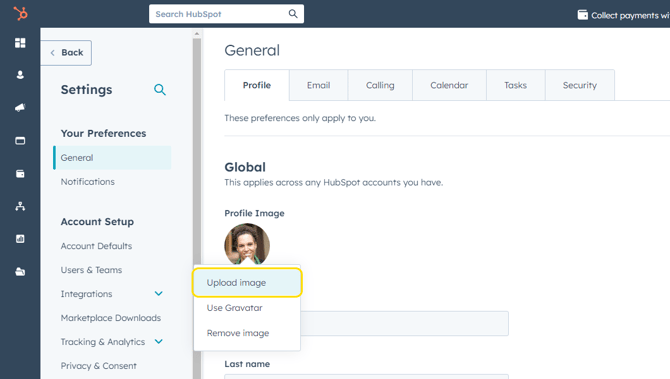
- Select Upload Image.
- Choose the photo file you'd like to use and click Save.
SET HubSpot SIGNATURE
- From any screen, click on Settings (gear icon in upper right).
- Click on General in the left sidebar.
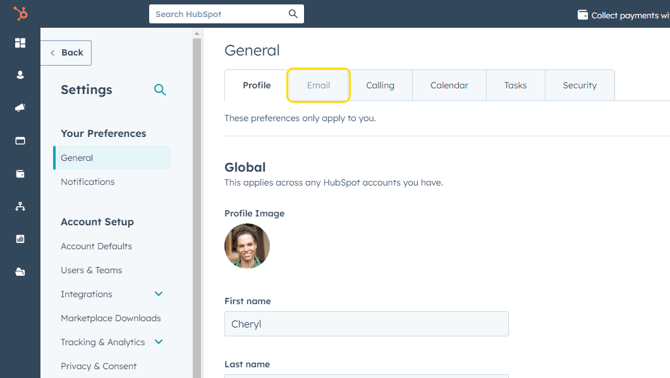
- Click on Email tab.
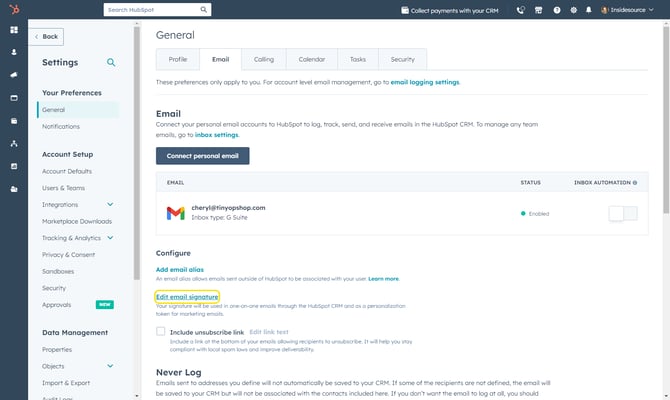
- Scroll down and click on Edit Email Signature.
- Copy/paste the text from your Outlook signature or type in a new signature. This signature will be used only for emails that are sent directly from HubSpot.
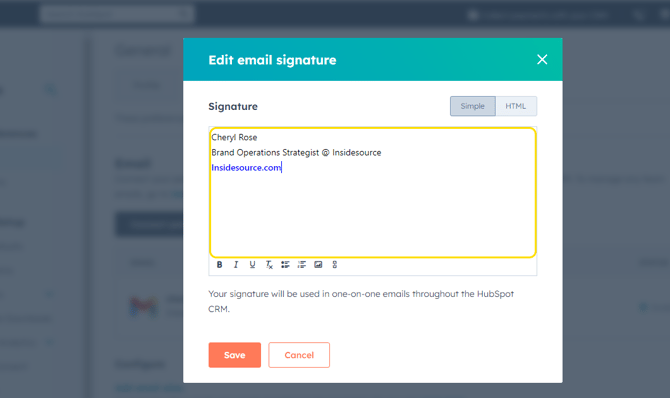
- Click Save.