
- Open the deal you want a CORE Order # assigned to.
- Under the Order Reference section, select Yes under I'm ready for a CORE order #.
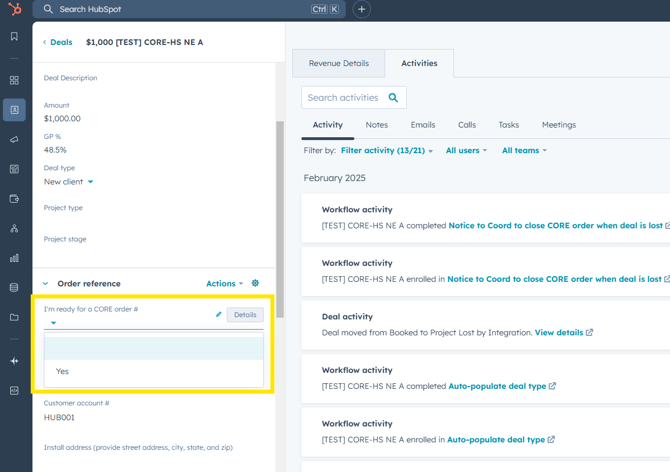
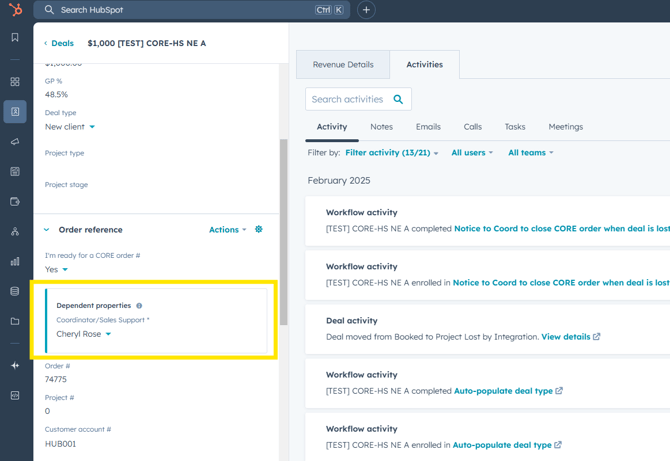
- A property to select/show the assigned Coordinator will pop-up. If you have a dedicated Coordinator alignment, your Coordinator should already appear in this property. If you do not have a dedicated Coordinator, you can search for and select the Coordinator for this project (if you are not sure who the Coordinator will be for this project, reach out to the Coordination Leader so the appropriate resource can be assigned).
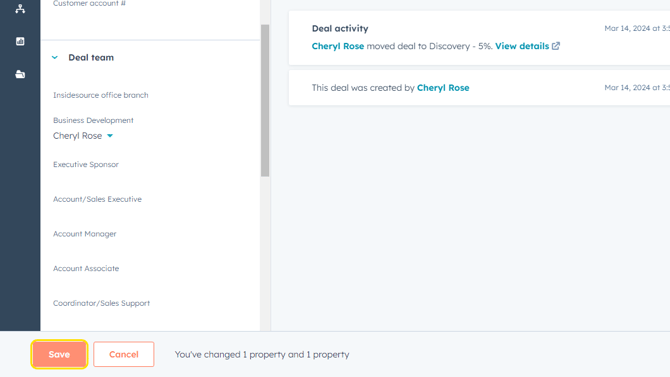
- Click Save.
- A new order will automatically be started in CORE and once created, the Order # will auto-populate (takes up to 5 min). The Coordinator will be automatically notified that a CORE order has been started and they can go into the order and update the Customer Account information, Project # if applicable, and order details. As updates happen, the HubSpot deal information will auto-update to match.
WHAT INFORMATION STAYS SYNCED BETWEEN HUBSPOT AND CORE?
The following properties will auto-update in HubSpot as they change in a connected CORE order:
- Deal amount
- Deal stage will move to Booked when order is Open Order in CORE
Deal stage will move to Billed when order is Invoiced in CORE - GP %
- Order #
- Project #
- Customer account #
- Customer due date