
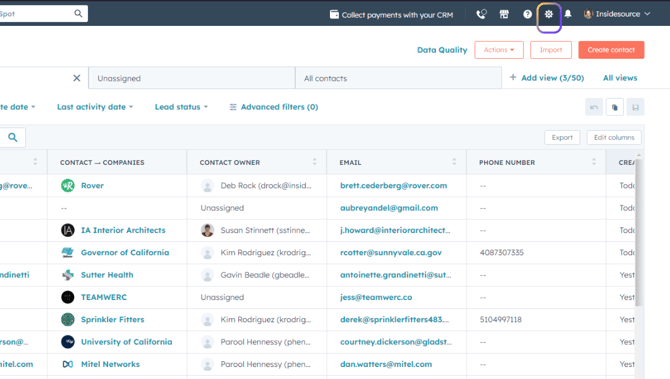
- Start by clicking on Settings (gear icon in upper right).
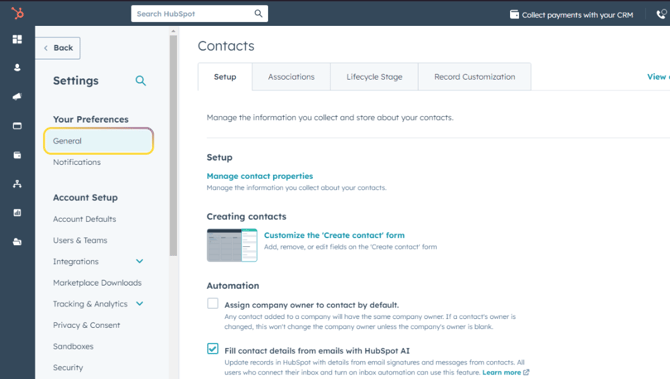
- Click on General in the left sidebar.
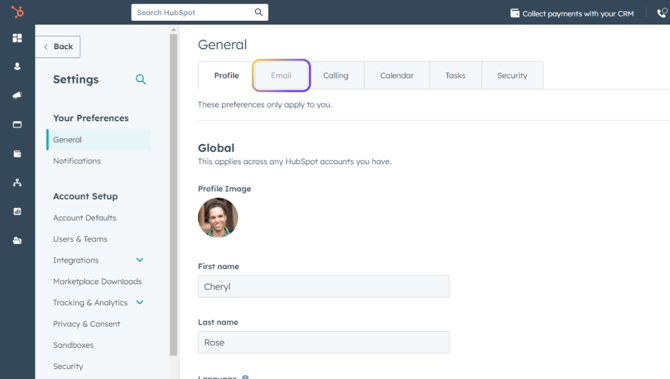
- Click on Email tab.
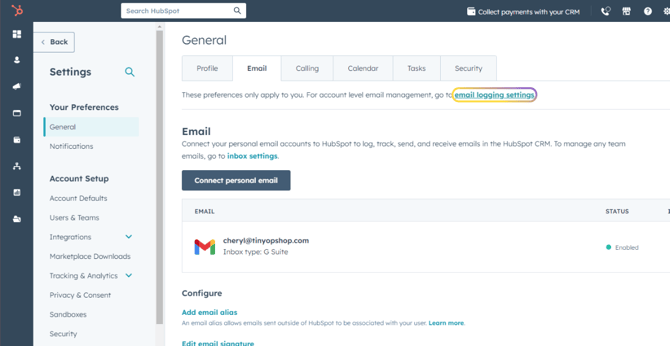
- Click on Email Logging Settings.
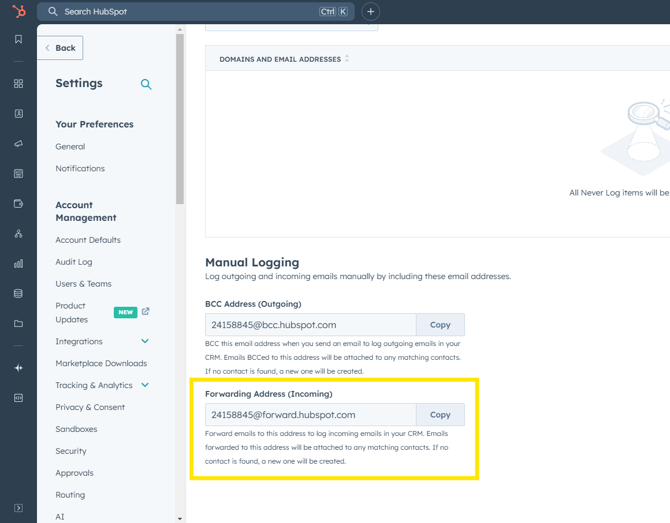
- Scroll to the bottom of the page to the Manual Logging section. Copy the Forward address. USEFUL TIP: Create a new contact for this address (i.e. HubSpot Forward) in Outlook, making it easy to use right from your Outlook address book.
- To Forward an existing message and its contacts into HubSpot, open the desired message in Outlook. Click Forward on the email you want to log to HubSpot.
- In the "To" field, paste the HubSpot Forward email address or select the HubSpot Forward email address that you saved in your address book. Then send the message, as normal.
Note: When forwarding an existing email, the new contact record in HubSpot will only have the contact's email address. You will need to log into the contact record in HubSpot afterwards to add details such as First and Last Name.