
- To create a new contact record, or to start a deal or task related to a particular contact in HubSpot, start a new email in Outlook and put the desired contact in the To field, as normal.
- The HubSpot email sidebar will pop-out on the right. If this contact is not in HubSpot, the orange button will offer you the ability to "Add to CRM," which allows you to fill in contact details beyond email address, and add the contact to HubSpot before sending the email.
You can also add a new deal or task associated with this contact from the sidebar, before the message is sent.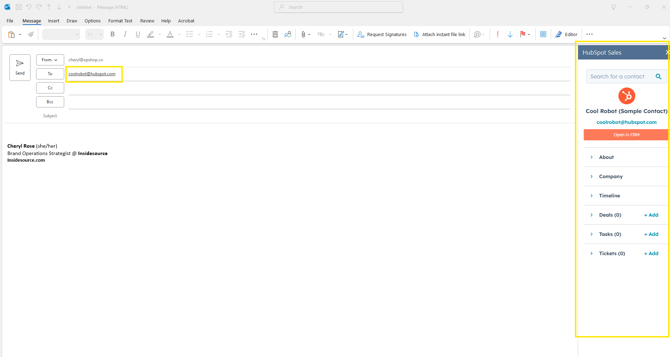
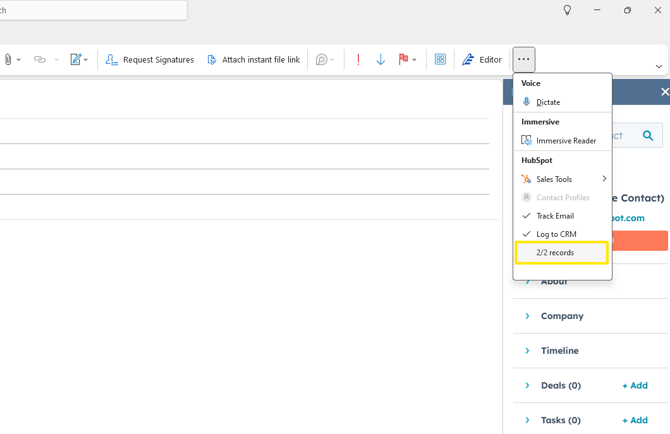
Note: you may see a pushpin icon on the pop-out which will allow you to pin this sidebar for easy access and it will open whenever you start a new email. - To ensure messages are associated with the right records in HubSpot, be sure to check the associated records before sending. Go to the ellipses in the toolbar and click on the X/X records.
- A separate pop-up will open showing the records HubSpot will copy this message to after it is sent. Uncheck/check any records as needed. If you need to associate a record that's not showing - a deal, for example - use the search bar to find the record you wish to add and check it (the deal must already exist in HubSpot to associate upon sending).
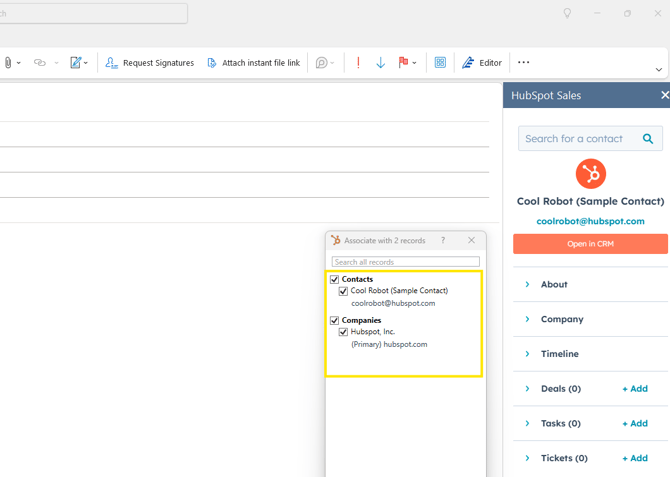
- When you send the message, records will automatically be created in HubSpot for the contact and company (if they aren't in HubSpot already), and the message will be logged to the contact record and any other records you choose to associate it with (i.e. a deal).